


What are the steps for installation?
- Right-Click the MBSDaylightForSketchupSetup.exe file and Select Run as administrator.
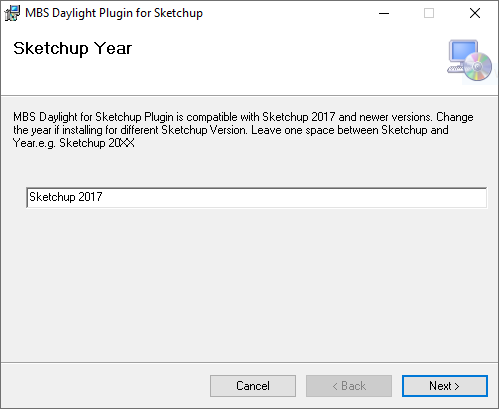
- Change the Sketchup Year on the textbox as required. Leave exactly one Space between Sketchup and the Year and don’t leave any extra spaces after the year.
- Follow rest of the steps and leave default values for any options.
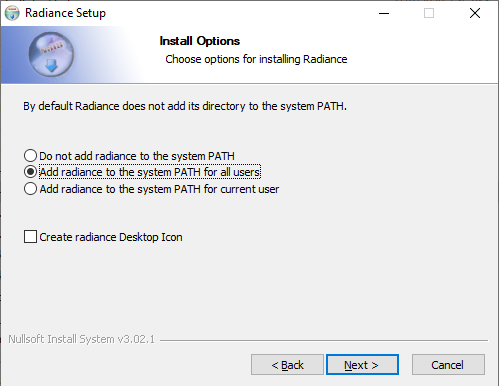
- Remember to Select Add radiance to the system PATH for all users.
What are the steps for updating the software?
- For future updates, follow the below steps
- Open the Software Update dialog by using
the Update plugin icon on the toolbar or
Sketchup Menu > Extentions > MBS Daylight Tool > Update Plugin - Sketchup must be restarted after the update.
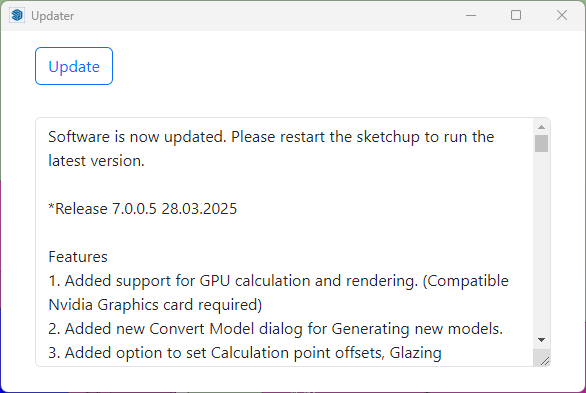
- The list of the latest changes will be listed on the dialog.
- Open the Software Update dialog by using
What Sketchup versions is the plugin compatible with?
- The plugin is compatible with Sketchup version 2017 or newer and works on Windows 7 or newer PCs.
Why does the MBS toolbar not appear after installation?
- In some cases, it may remain disabled after installation. Go to View-Toolbars menu and Tick MBS Daylight Toolbar to enable it.
- The commands can also be accessed Extensions – MBS Daylight Tool menu.
- If both options are not visible, Check if the mbsTool extension is disabled on Extension Manager.